- About this manual
- Login
- Menu
-
File list
- File list
- Upload files
- Preview
- Shortcuts and Right-Click
-
File Distribution
- About Email text
- About security settings
- Send from own mailer
- Email to Receiving (collecting) and distribution
- About Email text of the Email to collect and distribute
- About security settings of the Email to collect files and distribute files
- Notification of file and collection Email send from own mailer
- Check on how many people the file was sent
- Group sharing folder function
- Folder publication
- Display thumbnail image function
- Receive (collect)
- Gathering(※Option)
- Mail standby
- Address book
- Approval list(※Option)
- History
- Settings
- Profile
- Support
- Help
- Download files
- Upload files
Gathering
Send a Gathering email
Gathering is a function that receive (collect) files from multiple destinations at once.
By importing a CSV format file with multiple destination information, you can request multiple destinations to upload files in a single transmission.
Click on the [Send a Gathering email] button from the Gathering list page.
![[Send a Gathering email] button](../../help-images/view-en/gathering-send_button.gif)
The Gathering email input page will be displayed.
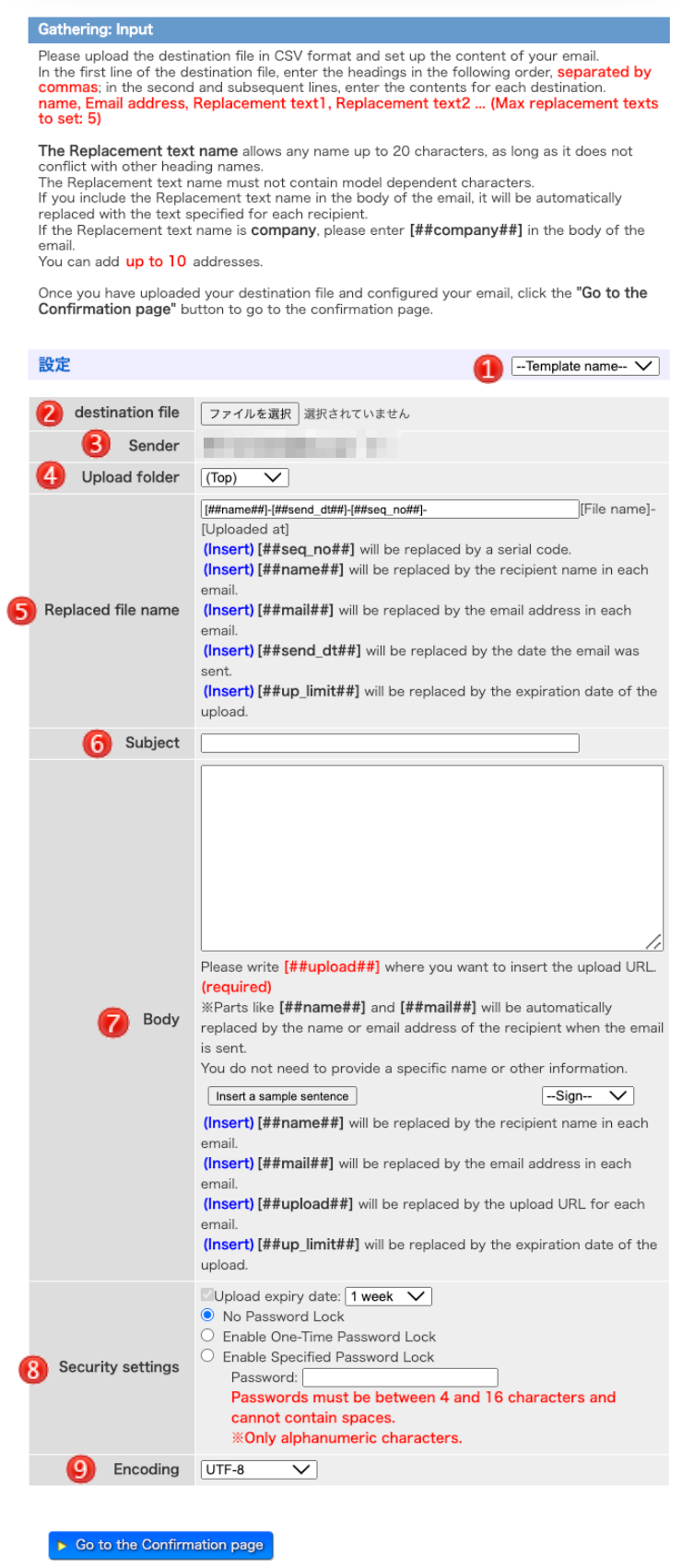
 Template Template |
You can select template you prepared. When you select a template, it will be inserted into the body of the email. If you have not created a template, this item will not be displayed.(→Template) 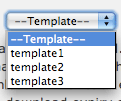
|
|---|---|
 Destination File Destination File |
Click the [Choose file] button to select the CSV file with the destination information.
(→About destination files) If you want to change the destination file once the import is completed, please click the [>> Change the destination file] link and select a new destination file. The previously imported destination information will be deleted and replaced by the contents of the new destination file. 
|
 Sender Sender |
According to the usage, you can send email of file notification with another sender name and sender email address. You can register another sender name and email address in the sender settings(→Sender setting). When the sender setting is invalid, the Sender is not displayed. |
 Upload folder Upload folder |
Select the folder where the uploaded files will be stored. Uploaded files will be stored directly in the specified folder. |
 Replaced file name Replaced file name |
Sets the prefix string to add to the uploaded file name. For example, if the replaced file name is set to [##name##]-May-FileName, and Sample_user uploads "report.pdf", the file will be saved as Sample_user-May-report.pdf. |
 Subject Subject |
Enter the subject of your email. |
 Body Body |
Enter the required information in the body of the email. (→About Email text) |
 Security settings Security settings |
Select the security settings that best suit your situation. (→About security settings) |
 Encoding Encoding |
Please select ISO-2022-JP or UTF-8 as the character encoding for your email. |
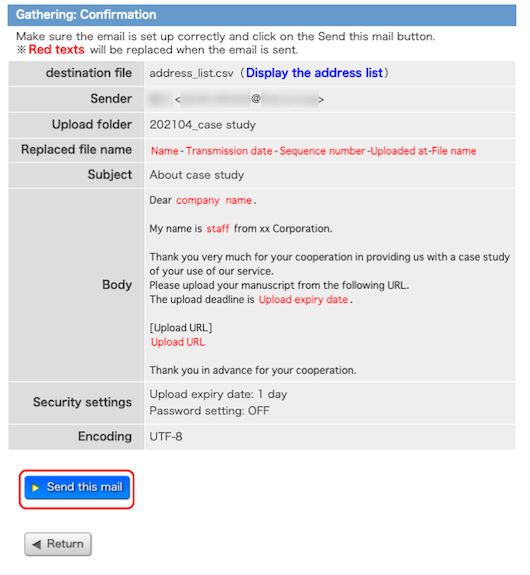
After importing the destination file and entering and selecting the required items, click the [Go to the Confirmation page] button. You will be redirected to the confirmation page.
If you want to confirm the imported destinations, click [Display the address list] to move to the Destination list page.(→About address list)
If you are satisfied with the contents of the page, click on the [Send this mail] button.
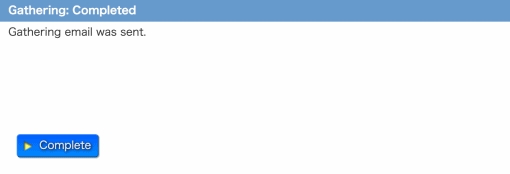
The completion page will be displayed, and emails will be sent to the destinations according to the information you have entered.
About destination files
In the destination file, enter the following headings in comma-separated CSV format on
the first line and the contents of each destination on the second and subsequent lines.
name, Email
address, Replacement text1, Replacement text2 ...
Sample destination files are available for file preparation.
(→Gathering list)
Replacement text can be set to 0~
5, and any item name can be given.
The number of destinations that can be sent at one time depends on th e license agreement. (For details, please
contact your administrator.)
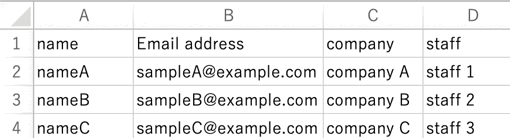
Example of a destination file
"name","Email address","company","staff"
"nameA","sampleA@example.com","company A","staff 1"
"nameB","sampleB@example.com","company B","staff 2"
"nameC","sampleC@example.com","company C","staff 3"
Example of CSV opened in Excel
About Email text
The body of the email can be created efficiently by inserting the text to be converted. The text to be converted are available for the upload URL required for collection, expiration date, name of each recipient, and email address.
In addition, sample sentences, templates and signatures can be inserted.
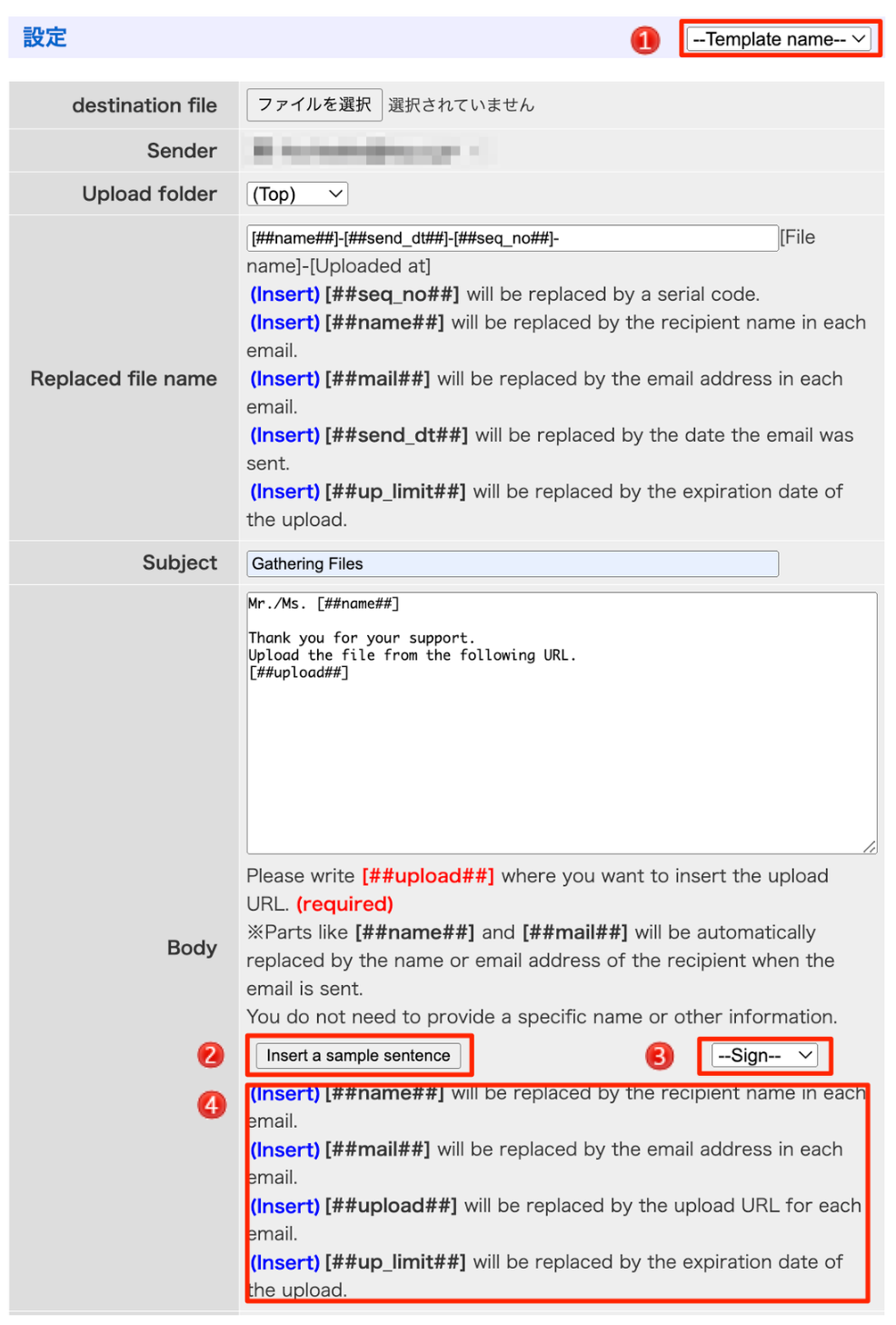
| Template |
You can select template you prepared. When you select a template, it will be inserted into the body of the email. If you have not created a template, this item will not be displayed.(→Template)
|
||||||||
|---|---|---|---|---|---|---|---|---|---|
| [Insert a sample sentence] button |
You can insert pre-prepared sample sentences. Click the [Insert a sample sentence] button to insert the sentences into the body of the email. |
||||||||
| Sign off |
You can select template signature you prepared. When you select a signature, it will be inserted into the body of the email. If you have not created a signature, this item will not be displayed.(→Sign offs) 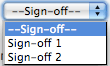
|
||||||||
| Text to be converted |
When inserted into the body of an email, the following text will be replaced with the information for each recipient when the email is sent. You can insert the text to be replaced into the body of the email by clicking (Insert) to the left of each text. 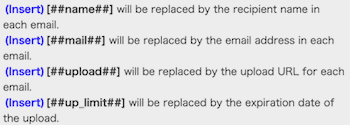
|
Example of text containing replacement
Dear [##company##] [##name##].
My name is [##staff##] from xx Corporation.
Thank you very much for your cooperation in providing us with a case study of your use of our service.
Please upload your manuscript from the following URL.
The upload deadline is [##up_limit##].
[Upload URL]
[##upload##]
Thank you in advance for your cooperation.
Actual email text to be received
Dear company A nameA.
My name is staff 1 from xx Corporation.
Thank you very much for your cooperation in providing us with a case study of your use of our service.
Please upload your manuscript from the following URL.
The upload deadline is 20xx-01-01 00:30.
[Upload URL]
https://example.com/gup.php?xxxxxxxxxxxx
Thank you in advance for your cooperation.
About security settings
Select the security settings that best suit your situation.
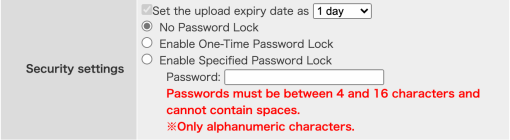
- Gathering expiration date
- Set the expiration date of Gatering.
- No Password Lock
- Select this option if you do not want to lock the upload URL for Gathering with a password.
- Enable One-Time Password Lock
- Select this option if you want to lock the upload URL for Gathering with a one-time password. The password is a one-time password with a limited email address to ensure high security.
- Enable Specified Password Lock
- Select this option if you want to lock the upload URL for Gathering with your own designated password. If it is set on the administrator's side, the designated password will be sent in another mail when the Gathering mail is sent.
About address list
In the address list, you can view a list of the address information imported from the destination file.
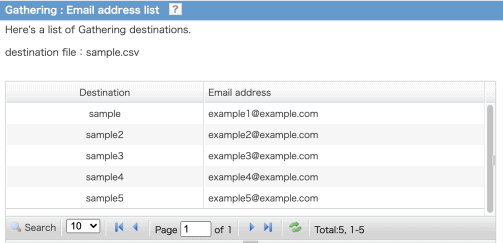
| Address list | |||||||||
|---|---|---|---|---|---|---|---|---|---|
 |
Click the magnifying glass icon to open the search form.
|
||||||||
 |
Set the number of lines to be displayed per page. | ||||||||
 |
Move to the first page. | ||||||||
 |
Move to the previous page. | ||||||||
 |
Move to the page you enter. | ||||||||
 |
Move to the next page. | ||||||||
 |
Move to the last page. | ||||||||
 |
Update the list. | ||||||||