- About this manual
- Login
- Menu
-
File list
- File list
- Upload files
- Preview
- Shortcuts and Right-Click
-
File Distribution
- About Email text
- About security settings
- Send from own mailer
- Email to Receiving (collecting) and distribution
- About Email text of the Email to collect and distribute
- About security settings of the Email to collect files and distribute files
- Notification of file and collection Email send from own mailer
- Check on how many people the file was sent
- Group sharing folder function
- Folder publication
- Display thumbnail image function
- Receive (collect)
- Gathering(※Option)
- Mail standby
- Address book
- Approval list(※Option)
- History
- Settings
- Profile
- Support
- Help
- Download files
- Upload files
Address book
Add address
Add from the form
You can add an address to your address book.
Please click [Add address] button. The area to add an address will appear.

Add address (registration) area will appear. Please enter or select items, and click the [Add] button.
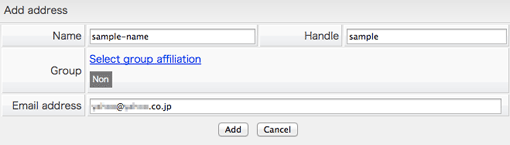
| Name | It is a name that address you want to add. |
|---|---|
| Handle | It is a handle name that address you want to add. |
| Group |
You can classify a mail address to a group. Supposing you set up the existing group, please click [Select group affiliation] link. The screen which sets up an affiliation group is displayed. Please choose a group from a group list.And please click the [↓] button. [Change of group affiliation] Click a button. A setup of a group is completed. 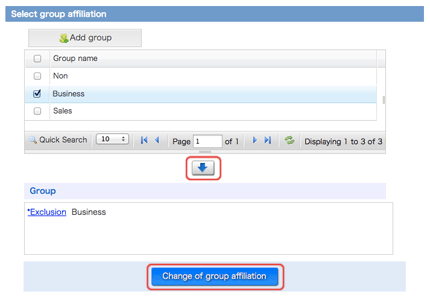 When you create a new group, please click the [Add group] button. Since the input column is displayed, please input a group name. If the completion of an input is carried out, please click on the preservation icon on right-hand side. A group is created. 
|
| Email address | Please enter the address you want to add. |
Add with the CSV file, Download with the CSV file
Add with the CSV file
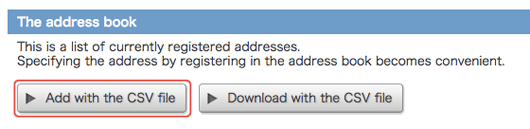
Please click [Add with the CSV file] button.
Select a CSV file that have information of Email address add to address book, and click [Import] button.
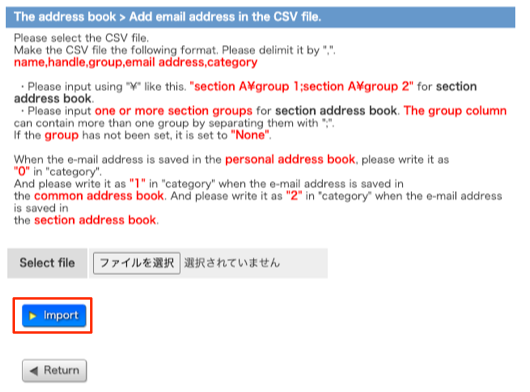
When you set not to display the commons, you can register to email addresses other than the commons.
When you set not to display the section address book, you can register to email addresses other than the section address book.
Only an individual mail address can be registered when setting not to display commons and the section address book.
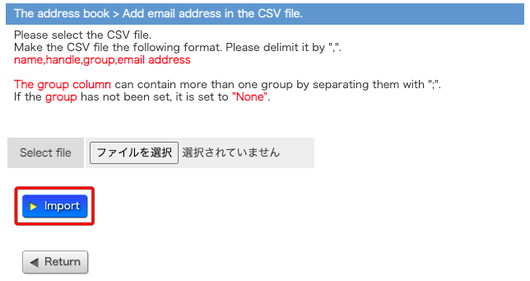
Select a CSV file that have information of Email address add to address book, and click [Import] button.
Please enter “name, handle, group, Email address, category” in turn from the first line in the CSV file.
When the e-mail address is saved in the personal address book, please write it as "0" in "category".
And please write it as "1" in "category" when the e-mail address is saved in the common address book.
And please write it as "2" in "category" when the e-mail address is saved in the section address book.
"smaple-name2","name2","sales","name2@example.com","1"
"smaple-name3","name3","sales","name3@example.com","2"
When it is set that Common and section address book are not displayed, please enter “name, handle, group, Email address in turn from the first line in the CSV file.
Only an individual mail address is registered.
"smaple-name2","name2","sales","name2@example.com"
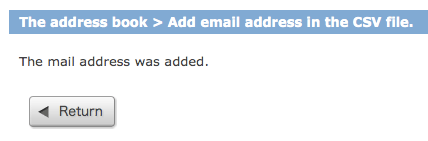
When import operetion will be completed, the complete screen will appear. Click [Return] button to return to the address book.
Edit address
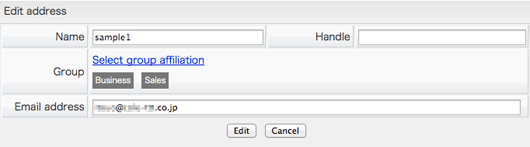
You can edit the address in the address book. Please click the address you want to edit in the address list.
After you select and click the address, please click the [Edit address] button.

The area to edit address will appear. Please edit the address and click [Edit] button.
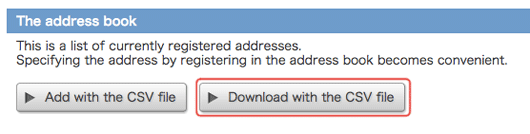
Download with the CSV file
Please click [Download with the CSV file] button.
Please download, when you can download a CSV file.
Delete address
Please click the address you want to delete in the address list.
You can select more than one address.
After selection please click [Delete address] button.

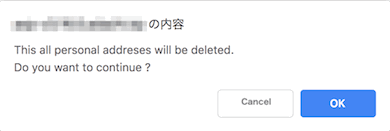
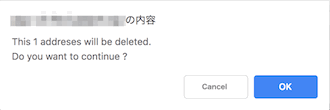
Confirmation message will appear, after confirm your operation, please click [OK] button.
The address you select will be deleted.
If you want to delete all addresses in your address list,please click the[Delete all addresses] button.
When you select the personal address list by [Personal/Common TAB], [Delete all personal addresses] button appears. and when you select the common addres list by [Personal/Common TAB],[Delete all common addresses] buton appears.

Confirmation message will appear, after confirm your operation, please click [OK] button.
The address you select will be deleted.